How to install a network Star TSP700II installed on Windows XP in Windows 10
Goal : You need to add a Star Micronics network printer installed on a XP machine to a Windows 10 machine.
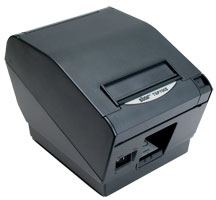
Issue : Windows update cannot find a suitable driver for the Star printer when you add the printer over the network.
Solution :
Step 1: Download the Star Micronics printer software from here ..
Step 1: Download the Star Micronics printer software from here ..
http://www.starmicronics.com/support/download.aspx?type=1&tabText=StarPRNT%20V3.4%20FULL%2032/64-bit&path=DriverFolder\drvr\starprnt_v340.zip&id=1743&referrer=http://www.starmicronics.com/support/
Step 2 : Navigate to the Windows folder in the download. Look for the 64 bit windows installer.
Step 3 : Install the software.
Step 4 : Make sure the printer is already installed on the Windows XP machine and that it is switched and reachable. If not installed, use the same Star Micronics printer software that was downloaded earlier, to install the printer on the XP PC. Make sure the printer is switched on and connected when the software is installed.
Step 5 : Go to the Devices and Printers control panel in your Windows 10 PC.
Step 6 : Click on Add a printer. Select the add a network printer option and navigate to the printer installed on the XP machine.
Step 7 : Windows 10 will automatically recognise the Star printer and will add it to the devices and printers panel.
Comments
Post a Comment